

Reply to a visitor
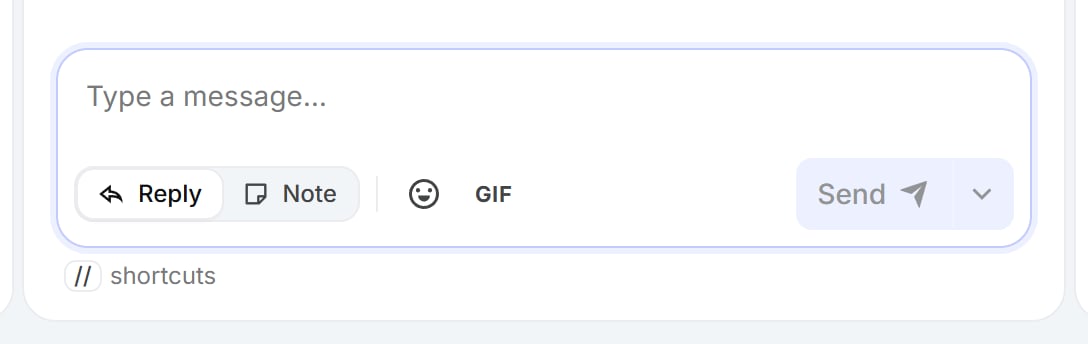
The composer: Reply or Note, attachments, emoji, and the send options.
- Type your message and press Enter to send. Shift + Enter adds a new line.
- Attach file to send a file or image, or add an emoji or a GIF.
- Hover over a message to copy it, quote it in your reply, or edit or delete one of your own.
- Under each of your replies, the delivery state shows Sent, Delivered or Seen.
Send and close
When your reply is the last thing the visitor needs, open the send options next to Send and choose Send and close: it sends the message and closes the chat as resolved.Quick responses
Saved replies for the things you write every day.- In the composer, type // to open your quick responses.
- Keep typing to filter, use ↑ and ↓ to move, and press Tab or Enter to insert one.
- Edit the text if you need to, then send.
Notes for your team
Switch the composer from Reply to Note to write something only your team can see: the visitor never sees notes. Use them to brief a teammate or record what you’ve checked. Show or hide notes in the chat with Show internal comments. For longer context that should stay with the chat, like an order number, use Chat notes in the right panel.Transfer a chat
Hand a chat to the right person:- Open More actions at the top of the chat.
- Choose Transfer chat.
- Search for the teammate and pick them. The chat shows Transferred to their name.