

Profile
Settings › Profile manages your personal information and how it appears to visitors.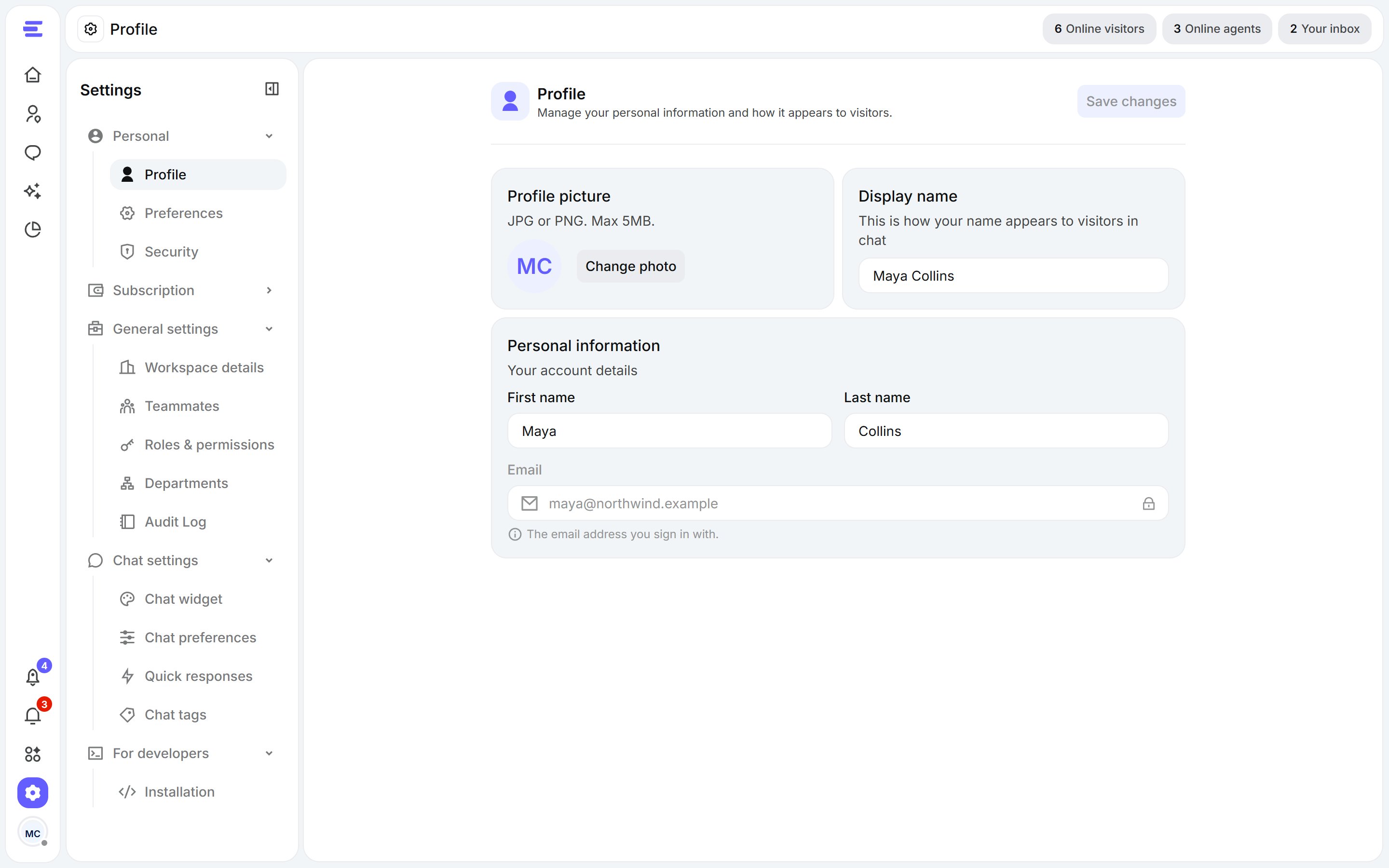
Settings › Profile.
- Profile picture: shown to visitors and your team.
- Display name: how your name appears to visitors in chat.
- Personal information: your account details.
Preferences
Settings › Preferences sets how the dashboard looks and which language it uses. You can also change both from the menu under your profile picture.- Theme: Light, Dark, or System to follow your device’s setting.
- Language: English, Arabic, Français or Español. Arabic switches the dashboard to right-to-left.
Security
Settings › Security manages how you sign in.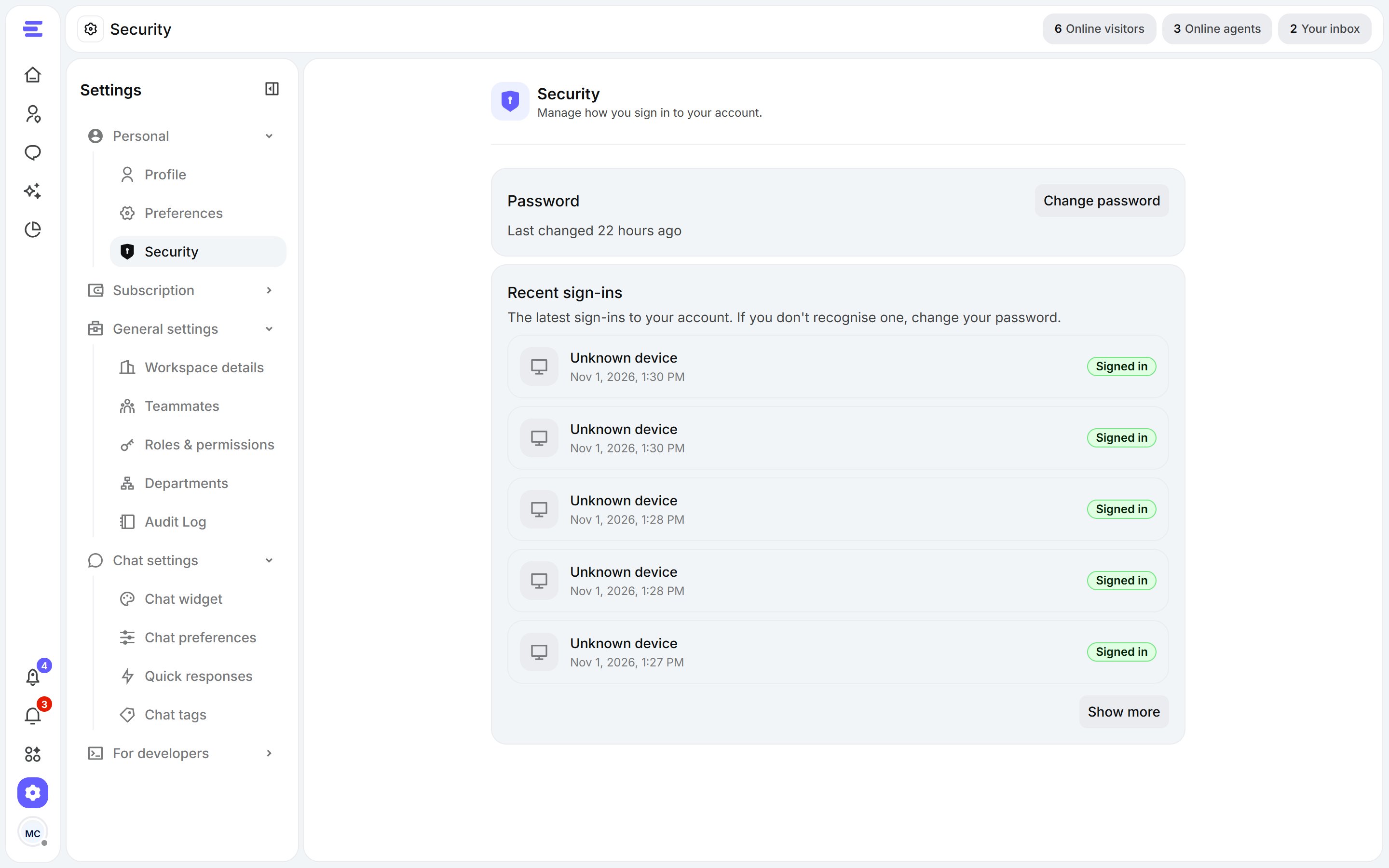
Settings › Security.
Change your password
- Click Change password.
- Enter your current password, then your new one twice. The form shows which password requirements you’ve met.
- Click Update password.