

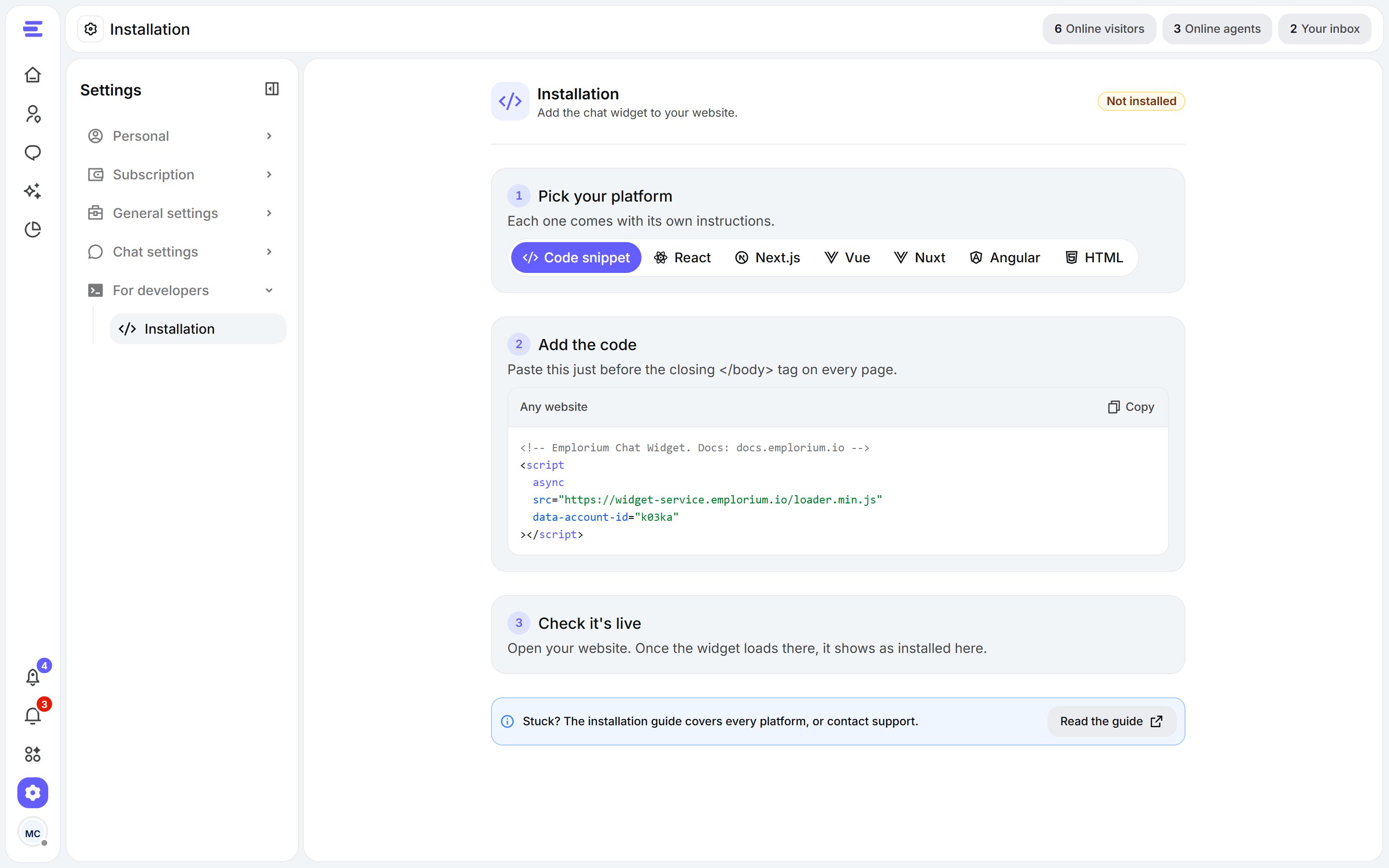
Settings › Installation: pick your platform, copy the code, check it's live.
Install it
1
Open Settings › Installation
In the dashboard, open Settings, then Installation under For developers. Your widget code is already filled in with your account ID.
2
Pick your platform
Choose Code snippet, React, Next.js, Vue, Nuxt, Angular or HTML. Each one shows the code in the form that platform needs.
3
Add the code
Click Copy and paste the code into your website, just before the closing
</body> tag on every page (see your platform below).4
Check it's live
Open your website. Once the widget loads there, Settings › Installation shows it as Installed, with the domain it’s live on.
Code for each platform
- Any website
- React / Vite
- Next.js
- Vue
- Nuxt
- Angular
- HTML
Paste this just before the closing
</body> tag on every page.Website builders
Builders don’t appear in Settings › Installation, but the same snippet works anywhere you can add custom code before</body>. Menu names can change as builders update their apps.
WordPress
WordPress
Use a header-and-footer code plugin (for example WPCode) and paste the snippet into the footer box, or add it to your theme’s
footer.php just before </body>.Shopify
Shopify
Go to Online Store › Themes, open Edit code on your live theme, open
layout/theme.liquid and paste the snippet just before </body>.Webflow
Webflow
Open Site settings › Custom code and paste the snippet into Footer code, then publish the site.
Wix
Wix
Open Settings › Custom code, add the snippet to All pages, and place it in Body - end.
Framer
Framer
Open Site settings › General › Custom code and paste the snippet into End of
<body> tag, then publish.Troubleshooting
The widget doesn't show on my site
The widget doesn't show on my site
- Check the snippet is on the page: view the page source and search for
loader.min.js. - Make sure
data-account-idis your own ID: copy the code again from Settings › Installation. - Clear your site’s cache (and any CDN cache), then reload.
Settings › Installation still says Not installed
Settings › Installation still says Not installed
The status changes once the widget has loaded on your website at least once. Open a page where you added the code, wait for the widget to appear, then come back to the dashboard.
The widget shows twice
The widget shows twice
The snippet is on the page twice, often once in a theme and once in a plugin. Keep only one.
Next steps
Customize the widget
Match its colours, position and messages to your brand.
Train Aura AI
Let Aura answer visitors from your own content, day or night.