

Billing overview
Settings › Billing shows your current plan, your usage this billing cycle (and when it resets), your payment method and your billing details.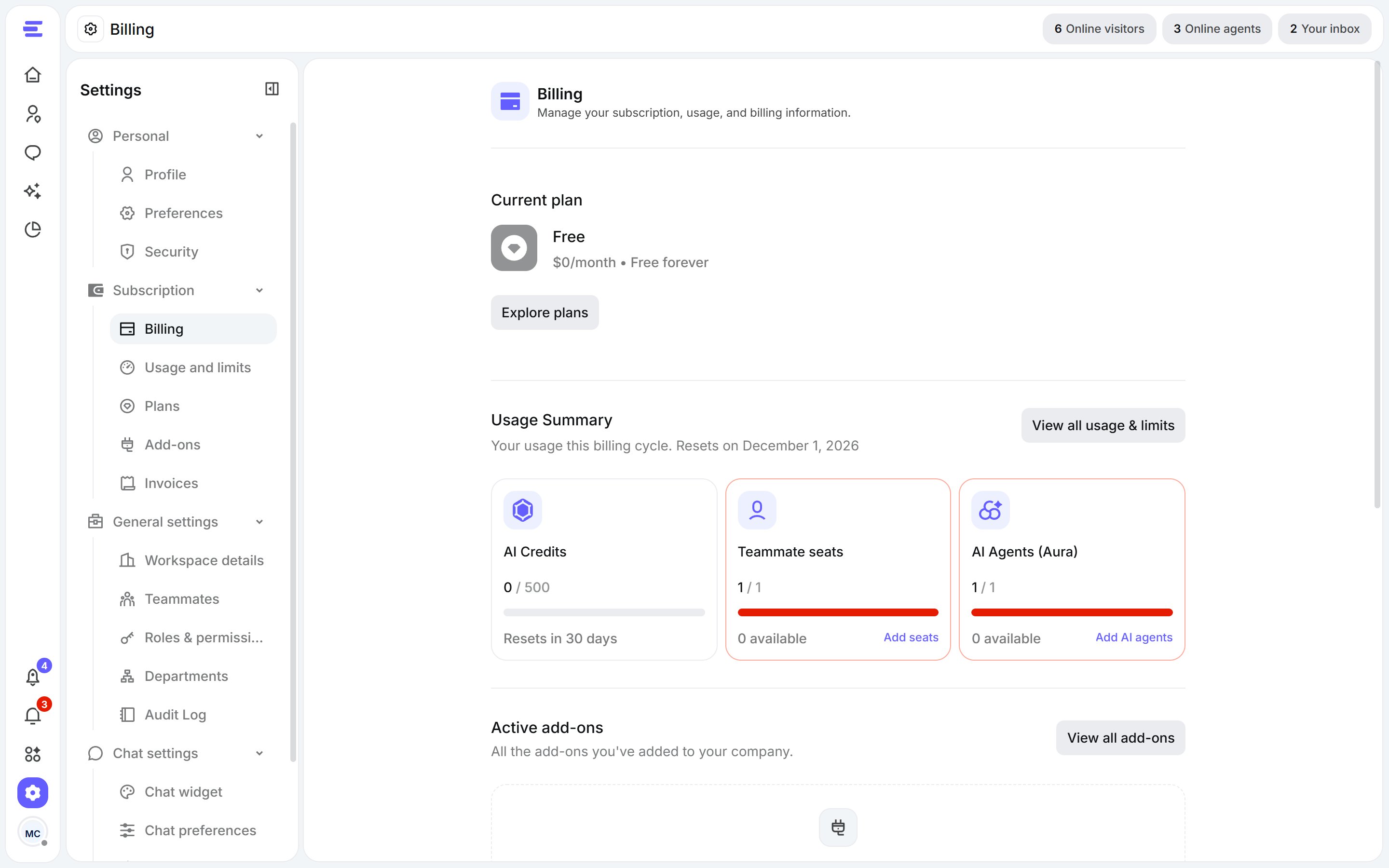
Settings › Billing.
Change your plan
1
Open Settings › Plans
Compare the plans side by side with Compare plans.
2
Pick a plan
Choose the plan you want. A summary shows what you’re getting (or what changes if you’re moving down).
3
Confirm
Confirm the change. Upgrades apply straight away; your new limits start as soon as you upgrade.
When you downgrade, you keep your current plan until the end of your billing period, with no extra charges. The new plan starts after that.
Usage and limits
Settings › Usage and limits shows your usage this billing cycle against your plan’s limits, and the account features you can turn on or off for the whole workspace, such as AI actions.Payment and invoices
- Payment method: add or replace a card from Settings › Billing. Cards are encrypted and processed securely by Stripe.
- Invoice details: the name, email and address shown on your invoices and receipts.
- Settings › Invoices lists your upcoming invoice (next billing date and estimated amount) and your invoice history. Click Download All to download your invoices.